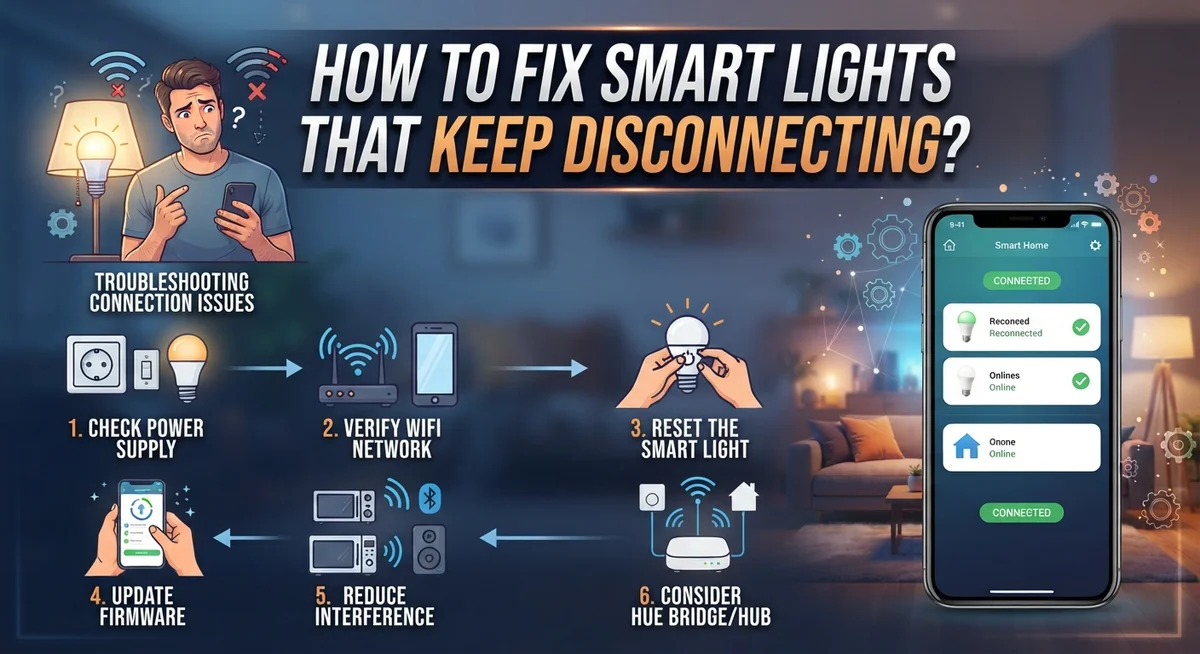
How to Fix Smart Lights That Keep Disconnecting?
Smart lights make your home feel modern and fun. But nothing ruins that magic faster than a bulb that keeps dropping offline.
You ask your voice assistant to dim the lights. Nothing happens. You check the app, and your bulb shows as “unreachable” again.
This problem is more common than you think. Most smart lights disconnect because of simple network issues, not because they are broken.
Wi-Fi signal strength plays a huge role here. Many bulbs only work on 2.4 GHz networks, not 5GHz. Router settings, physical switches, and even ghost devices in your app can also cause trouble.
The good news? You can fix most of these issues yourself. You do not need to call a technician or replace your bulbs.
In this guide, we will walk through the real reasons your smart lights keep disconnecting. You will learn how to check your network, adjust router settings, and clear out problem devices.
By the end, your smart lights should stay connected and work the way they were meant to.
In a Nutshell
Here’s a quick summary to help you fix the problem fast.
-
Check your Wi-Fi band first. Most smart bulbs only work well on 2.4 GHz networks, not 5GHz. This one fix solves many disconnection issues.
-
Keep physical switches on. Never turn off the wall switch for your smart bulb. This cuts power and breaks the connection completely.
-
Reboot your router regularly. A simple restart clears up network glitches. It also helps your bulbs reconnect smoothly.
-
Remove ghost devices from your app. Old or duplicate entries confuse the system. Delete them before adding your bulb again.
-
Add bulbs one at a time. Setting up multiple lights together often causes conflicts. Go slow for a stable connection.
-
Create a separate network for smart devices. A dedicated IoT SSID keeps your bulbs away from network overload. This reduces interference from other gadgets.
Following these steps will keep your lights connected and working right. Most fixes take just a few minutes to complete.
Why Smart Lights Disconnect: Understanding the Root Causes
Smart lights disconnect for specific reasons. Understanding these causes helps you fix the problem faster and prevent it from happening again.
Wi-Fi band incompatibility is the leading cause. Most smart bulbs connect only to 2.4 GHz networks. Your router might broadcast both 2.4 GHz and 5 GHz at the same time. When your bulb tries to connect to 5 GHz, it fails. The bulb then struggles to find the right frequency and drops offline.
Signal strength matters too. Smart bulbs need a steady Wi-Fi signal. If your router sits far from the bulbs, the signal weakens. Walls, metal objects, and other devices block the connection. A weak signal causes frequent disconnections.
Physical switches cause hidden problems. When you flip the wall switch to “off,” the bulb loses power completely. The bulb then forgets it was connected to your network. Turning the switch back on forces the bulb to reconnect from scratch. This creates unnecessary disconnections.
Router instability creates chaos for your devices. Mesh networks with band steering enabled confuse smart bulbs. The router tries to move devices between bands automatically. Smart bulbs cannot follow these rapid changes and disconnect.
Ghost devices pile up in your app over time. If you remove a bulb but don’t fully delete it from the app, a duplicate entry remains. When you add the same bulb again, the app sees two entries for one device. This confusion causes connection failures.
Network overload happens when too many devices compete for bandwidth. Your phone, computer, and smart bulbs all fight for router attention. The router prioritizes other devices and drops the bulbs.
Power supply issues also matter. Bulbs need consistent electricity. Flickering power or unstable outlets force bulbs to reconnect repeatedly. A steady power supply keeps bulbs online longer.
Fixing Wi-Fi Signal and Network Compatibility Issues
Your router is the backbone of your smart light system. When your router acts unstable, your lights disconnect frequently. A simple reboot often fixes this problem in minutes.
Start by unplugging your modem and router from power. Wait 30 seconds, then plug them back in. This clears temporary glitches and refreshes your network connection. Your lights should reconnect automatically once the router restarts.
Next, check your Wi-Fi band settings. Most smart bulbs work only on 2.4 GHz networks. If your router broadcasts both 2.4 GHz and 5 GHz on the same network name, your bulbs may jump to the 5 GHz band and lose connection. Access your router settings and separate these bands into different network names. This gives you direct control over which band your lights use.
Consider disabling mesh band steering if you have a mesh network system. Band steering automatically moves devices between frequencies, which confuses smart bulbs. Turn this feature off in your router settings. Also disable fast roaming, which can cause bulbs to disconnect during handoffs between mesh nodes.
Create a dedicated network for your smart devices. Many routers let you set up a separate Wi-Fi network just for IoT devices. This keeps your smart lights away from computers, phones, and streaming devices that consume heavy bandwidth. Your bulbs get a cleaner connection with less competition.
Check your network security settings too. Some routers use security protocols that smart bulbs don’t recognize. Ensure your Wi-Fi uses WPA2 or WPA3 encryption, which most modern bulbs support. Avoid outdated WEP security.
Finally, position your router in a central location. Smart bulbs need consistent signal strength. Walls, metal objects, and distance weaken Wi-Fi signals. A centrally placed router ensures your lights stay connected throughout your home.
Optimizing Your Router and Mesh Network Settings
Your router settings have a huge impact on whether your smart lights stay connected. Let’s focus on the specific adjustments that work.
Start with your mesh network settings. If you use a mesh system, disable band steering. This feature automatically switches devices between 2.4 GHz and 5GHz, which confuses smart bulbs. Your bulbs need to stay on 2.4 GHz consistently.
Next, turn off fast roaming if your mesh system offers it. Fast roaming makes your router switch devices between nodes too quickly. Smart lights can’t keep up with these rapid transitions.
Create a dedicated network for your IoT devices. Most routers let you set up a separate SSID just for smart home gear. This keeps your bulbs away from computers, phones, and streaming devices that demand more bandwidth. Your smart lights need a calm, stable network to thrive.
Check your router’s security settings too. Some advanced encryption settings block smart bulbs from connecting properly. Standard WPA2 security works best for smart lights. Avoid overly strict firewall rules that might isolate your IoT network from the rest of your home.
Reduce interference on the 2.4 GHz band. Check which channel your router uses. Channels 1, 6, and 11 work best in most homes because they don’t overlap. Your router should have an auto channel selection feature.
Finally, give your router some breathing room. Position it away from microwaves, cordless phones, and metal objects. These items create interference that disrupts smart light connections.
After making these changes, reboot your entire system. Unplug your modem and router for 30 seconds, then plug them back in. Wait for everything to fully restart before reconnecting your smart lights.
Step-by-Step: Removing and Re-Adding Devices Properly
Removing and re-adding your smart lights properly stops ghost device entries from clogging your app. Ghost devices are old connections that your app remembers even though the bulb is gone. These phantom entries confuse your system and prevent new connections.
Start by opening your smart home app. Look for your disconnected light in the device list. Find the option to remove or delete it. This step is crucial because it clears the ghost entry completely. Do not skip this part.
Next, perform a factory reset on the physical bulb itself. Most smart bulbs have a reset procedure you can find in their manual. Some bulbs reset by turning the power on and off in a specific pattern. Others have a small reset button you hold for several seconds. Check your bulb’s documentation for the exact steps.
Wait at least 30 seconds after the factory reset. This gives the bulb time to clear its memory completely. Then turn the bulb off using the physical wall switch and leave it off for another 30 seconds.
Now turn the bulb back on. Open your app and start the pairing process fresh. Add only one bulb at a time. Do not try to add multiple bulbs simultaneously because this causes connection conflicts.
During setup, make sure your phone is on the 2.4 GHz network. Your app needs to communicate with the bulb on the same band. Follow your app’s pairing instructions step by step. The bulb should appear in your device list within a minute or two.
Once the bulb connects successfully, test it before adding another one. Turn it on and off through your app several times. Make sure it responds quickly without delays. Only after confirming stability should you add your next bulb using the same process.
This methodical approach prevents ghost devices and connection errors from returning.
Best Practices for Physical Switches and Power Supply
Physical switches are often the hidden culprit behind smart light disconnections. When you flip a traditional wall switch to the “off” position, you cut power to the bulb entirely. This forces the bulb to lose its Wi-Fi connection and drop from your network.
The golden rule is simple: leave physical switches in the “on” position at all times. Control your lights through your app or voice assistant instead. This keeps power flowing to the bulb continuously and maintains a stable connection.
If you have a physical switch near your smart bulbs, tape it in the “on” position or cover it with a note. This prevents family members or guests from accidentally turning off the switch and disconnecting your lights. Even a brief power interruption can trigger disconnection issues that take minutes to resolve.
Consider upgrading to a smart switch or smart dimmer if you want physical control. These devices work with your smart bulbs without cutting power to them. A smart switch sends commands through your network rather than cutting the electrical circuit.
Your power supply also affects reliability. Make sure the outlet powering your smart bulb is stable and not shared with too many other devices. Avoid daisy chaining power strips or using damaged cords. A clean, dedicated power source keeps your bulb connected longer.
Check your bulb’s power consumption too. If your outlet or wiring is old, it might deliver inconsistent power. This causes the bulb to reset randomly and disconnect from Wi-Fi.
Test your setup by leaving the physical switch on for several days. Monitor whether your disconnection problems disappear. If they do, you’ve found your problem. If issues continue, move on to checking your network settings and router configuration.
Common Mistakes That Cause Repeated Disconnections
Many people make simple mistakes that cause their smart lights to disconnect repeatedly. Understanding these errors helps you fix the problem quickly.
The biggest mistake is using a 5GHz Wi-Fi network. Most smart bulbs only work well on 2.4GHz connections. Your router might broadcast both frequencies, but your bulbs cannot connect to the faster 5GHz band. Check your network list and switch your phone to 2.4GHz before adding bulbs.
Another common error is toggling physical light switches. When you flip a wall switch to “off,” your bulb loses power and disconnects from your network. Even worse, turning it back on forces the bulb to reconnect from scratch. This repeated cycling confuses your system and creates connection problems. Leave physical switches in the “on” position always and control lights through your app instead.
Adding multiple bulbs at the same time causes serious issues. Your router can become overwhelmed when several devices try to connect simultaneously. Add one bulb, wait for it to connect fully, then add the next one. This gives your network time to handle each device properly.
Ghost device entries in your app create invisible problems. These are old device records that still exist even though your bulb has disconnected. Your app tries to communicate with these ghost entries, which wastes network resources. Before re-adding a disconnected bulb, remove it completely from your app first. Wait a few seconds, then add it fresh.
Poor power supply stability also triggers disconnections. Make sure your bulbs receive consistent power without flickering. Loose bulb sockets or faulty fixtures cause power interruptions that disconnect your lights.
Finally, many people skip the factory reset step. When a bulb acts up, they simply try to reconnect it. A proper factory reset clears old settings and gives the bulb a fresh start. Hold the reset button for the time specified in your manual, then wait 30 seconds before reconnecting.
Advanced Troubleshooting for Persistent Connectivity Problems
When your smart lights keep disconnecting despite basic fixes, you need to dig deeper into your network setup. The problem often hides in settings you haven’t checked yet.
Start by examining your router’s band steering feature. Many modern routers automatically switch devices between 2.4 GHz and 5 GHz bands. Smart bulbs struggle on 5 GHz, so this constant switching causes disconnections. Access your router settings and disable band steering completely. Your bulbs will stay on 2.4 GHz where they work best.
Next, check your fast roaming settings. Some routers enable this feature to speed up device switching between access points. Smart lights interpret this as a disconnection signal. Turn off fast roaming in your router’s advanced settings. This single change fixes many persistent problems.
Consider creating a dedicated network just for your smart home devices. Many routers let you set up a separate SSID (network name) for IoT devices. This keeps your smart lights away from your computers and phones, reducing interference. Connect only your bulbs to this network and control them through your main network.
If you use mesh Wi-Fi, the problem might be even simpler. Mesh systems sometimes cause devices to bounce between nodes. Disable mesh band steering and ensure all nodes use the same network name and password.
Test your router’s stability by rebooting it properly. Unplug the power cable for 30 seconds, then plug it back in. Wait for all lights to stabilize before reconnecting your bulbs. A fresh router restart often clears connection issues.
Finally, check if interference exists nearby. Microwaves, baby monitors, and cordless phones operate on the 2.4 GHz band too. Move your router away from these devices if possible. Position it in a central location for better coverage throughout your home.
Final Thoughts
Smart light disconnections feel frustrating, but most fixes are simple. Your Wi-Fi network causes most problems. Switch to 2.4 GHz and skip 5GHz entirely.
Router settings matter more than people realize. Band steering and fast roaming confuse smart bulbs. Turn these features off for better stability.
Physical switches trip up many households. Leave switches in the “on” position always. Use your app or voice assistant for control instead.
Ghost devices linger in apps after failed setups. Remove old entries before adding bulbs again. This small step prevents confusing connection errors.
Adding bulbs one at a time makes setup smoother. Rushing through multiple bulbs at once often causes dropped connections. Patience pays off here.
Power supply issues sneak up on people too. Check your bulb’s wattage needs. Make sure your circuit handles the load without strain.
A dedicated network for smart devices helps immensely. This keeps your IoT gadgets separate from phones and laptops. Fewer conflicts mean fewer disconnections.
Router reboots solve more problems than expected. Unplug it, wait thirty seconds, then restart. This simple action refreshes your entire network.
Factory resets work well for stubborn bulbs. Reset the bulb, then set it up fresh. This often clears hidden glitches instantly.
Testing your fixes takes a few days. Watch how your bulbs behave after each change. This helps you spot what actually worked.
Smart lights should work reliably once configured correctly. Most disconnection issues trace back to Wi-Fi settings or physical switches. Fix these two areas first.
Don’t feel overwhelmed by troubleshooting steps. Work through them one by one. Your smart lighting system will run smoothly again soon.
With patience and the right network setup, disconnections become rare. Stable connections come from stable networks and consistent power. Keep these basics in mind, and your smart lights will stay connected for good.
Frequently Asked Questions
Why do my smart lights disconnect more often on 5GHz networks?
Smart bulbs struggle with 5GHz because the signal doesn’t travel through walls as easily. 5GHz networks also have shorter range and higher power requirements. Most smart bulbs are designed for 2.4GHz networks, which offer better stability and coverage for IoT devices.
Switch your bulbs to a 2.4GHz network instead. Your router likely supports both frequencies. You can usually split them into separate networks in your router settings, which gives you better control.
What is a ghost device and how does it cause disconnections?
A ghost device is a leftover entry in your app from a failed setup or removal. Your app tries to communicate with this phantom device, which creates confusion in your network. This invisible problem drains your network resources and causes real devices to drop connection.
Before re-adding a bulb to your app, always remove the old entry completely. Wait a few seconds after deletion. Then restart your app before adding the device again.
Should I leave my physical light switch on or off?
Always leave physical switches in the on position. Flipping them off cuts power to the bulb, which forces it to reconnect every time you turn it back on. This constant reconnecting is a major cause of disconnection problems.
Control your lights through your app or voice commands only. Treat the physical switch as a permanent fixture, not a control method.
Can I add multiple smart bulbs at once during setup?
No. Adding several bulbs simultaneously overwhelms your network and causes setup failures. Each bulb needs individual attention during the connection process.
Add one bulb, wait for it to connect successfully, then add the next one. This slower approach prevents conflicts and ghost devices.

DK is the founder and lead writer at Smart Lighting Finds, where he helps readers discover the best lighting products through honest, hands-on reviews and in-depth comparisons. With a deep passion for home improvement and smart technology, DK is dedicated to making every lighting decision easier and brighter for his readers.