
How to Add a Monitor Light Bar to Reduce Eye Strain?
Do your eyes feel tired after long hours at your computer? You are not alone.
Millions of people deal with eye strain, headaches, and dry eyes from staring at screens all day. The good news is a simple fix exists.
A monitor light bar can change how you feel at your desk. This small device clips onto your monitor and lights up your workspace.
It uses an asymmetrical design to spread light where you need it. This means it lights your desk without shining glare into your eyes.
Many people wonder if this tool actually works. The answer is yes, especially when your room has decent lighting already.
This article will show you how a light bar can ease your eye strain. We will cover the real benefits, like better focus and less fatigue.
You will also learn how it helps during long gaming sessions or workdays. We will answer common questions, like whether it dims your screen.
Spoiler: it does not dim your screen at all.
By the end, you will understand why this simple addition might be exactly what your eyes need.
In a Nutshell
Here’s a quick look at what a monitor light bar can do for you.
-
It fights eye strain fast. The light bar spreads soft light across your desk. This helps your eyes relax during long work or gaming sessions.
-
It uses smart asymmetrical design. Light points down at your desk, not into your eyes. This stops glare without touching your screen brightness.
-
Your screen stays bright and clear. The bar does not dim your display in any way. You get better visibility around your monitor instead.
-
It boosts your focus and output. Comfortable eyes mean fewer breaks and headaches. You can work or play longer without discomfort.
-
Room lighting still matters. A light bar works best when your room has decent ambient light. It cannot fix a totally dark space alone.
-
It suits gamers and workers alike. Long hours in front of a screen affect everyone the same way. Adding this light helps both groups equally.
Keep these points in mind as you decide if a monitor light bar fits your setup.
What Is a Monitor Light Bar and How Does It Work?
A monitor light bar is a small light fixture that attaches to the top of your screen. It shines light downward onto your desk instead of at your face. This simple placement makes a big difference for your eyes.
The key feature is its asymmetrical design. This means the light spreads in a specific pattern. Light goes down and forward toward your work surface, not upward into your eyes. This stops glare from bouncing off your screen and hitting your face directly.
Here’s how it helps your eyes. When your desk is too dark, your eyes work harder to see what’s on screen. Your pupils dilate more, and you strain to focus. A light bar fills that gap by lighting your workspace evenly. Your eyes no longer jump between bright screen and dark surroundings.
The bar does not dim your monitor. Your display stays at full brightness and clarity. The light bar simply adds ambient light to the area around your computer. Think of it as extra lighting for your desk, similar to a desk lamp but positioned differently.
Effectiveness depends on your room’s existing light. A light bar works best when you already have decent ambient lighting. If your room is pitch black, the light bar alone cannot fix the problem. You need some baseline light in your space.
This tool suits different situations. People working long shifts at computers benefit from reduced eye strain. Gamers playing for hours find it helpful too. Anyone spending extended time looking at screens can gain from better desk lighting. The light bar simply makes your workspace more comfortable for your eyes over time.
Why Screen Glare and Poor Lighting Cause Eye Strain
Your eyes work harder when your screen and surroundings don’t match in brightness. Screen glare happens when light bounces off your monitor surface directly into your eyes. This reflection forces your eyes to work overtime to see the content clearly.
Poor lighting in your workspace makes this problem worse. When your room is too dark, your pupils dilate to let in more light. Your monitor then appears extremely bright by comparison. This contrast causes eye strain and fatigue that builds up over hours.
Dim or uneven lighting also means your eyes constantly adjust focus. They shift between reading your screen and dealing with shadows around your desk. This constant refocusing tires the muscles in your eyes. You may feel a dull ache behind your eyes or a burning sensation by day’s end.
Screen glare reduces contrast and clarity. Your brain works harder to process what you see. This extra effort leads to headaches and difficulty concentrating. Many people don’t realize their discomfort comes from lighting issues rather than screen time itself.
Dry eyes often accompany poor lighting conditions. When you strain to see through glare, you blink less frequently. Reduced blinking means less moisture reaches your eyes. The result is that scratchy, uncomfortable feeling many office workers experience.
The real issue is balance. Your workspace needs even, soft light that doesn’t bounce off your screen. Without proper lighting, your eyes remain tense throughout the day. This tension accumulates and creates the fatigue you feel after work.
Understanding these causes helps explain why additional light sources matter. A monitor light bar addresses these specific problems by providing the right light in the right direction.
Step-by-Step: Installing a Monitor Light Bar
Installing a monitor light bar is straightforward and takes just a few minutes. Most models use a simple mounting system that requires no tools or drilling.
First, clear the top of your monitor. Remove any items sitting on the bezel or frame. Wipe the surface clean with a soft cloth. Dust and debris prevent secure attachment.
Next, locate the mounting bracket or adhesive pad that comes with your light bar. Check if your model uses a clip system or adhesive strips. Clip systems grip the monitor frame, while adhesive options stick directly to the bezel.
For clip systems, open the mounting mechanism and position it at the center top of your monitor. Slide it forward until it grips firmly. The bar should sit level and not tilt forward or backward.
If your model uses adhesive, peel back the protective layer. Position the pad at the center top of your monitor. Press down firmly for several seconds. Let the adhesive set for the time recommended in your instructions, usually 24 hours.
Connect the power cable to the light bar. Route the cord behind your monitor or along your desk edge to keep your workspace tidy. Plug it into a nearby outlet or USB port if your model supports USB power.
Turn on the light bar and adjust it to your preferred brightness level. Most models have simple controls on the device or a remote option.
Step back and check the positioning. The light should spread evenly across your desk without creating new glare on your screen. Make small angle adjustments if needed.
Your light bar is now ready to reduce eye strain during work or gaming sessions.
Adjusting Brightness, Angle, and Color Temperature for Comfort
Adjusting your monitor light bar correctly makes a real difference in how comfortable your eyes feel. Start by setting the brightness level to match your room’s natural lighting. Your goal is to create even light across your workspace without creating new glare on your screen.
Brightness control is your first step. Most light bars have simple adjustment buttons or a dial. Turn the brightness up gradually until the light feels natural and balanced with your surroundings. Too bright causes glare. Too dim defeats the purpose. Your eyes should feel relaxed, not strained.
Next, focus on the angle of your light bar. The bar should aim downward at a slight angle toward your desk and keyboard. This direction illuminates your work area while avoiding direct reflection off your monitor. Adjust the tilt until light spreads evenly across your workspace without bouncing back at your face.
Color temperature matters more than many people realize. Warmer light (more yellow tones) feels easier on your eyes during evening hours. Cooler light (more blue tones) works better during daytime work. If your light bar offers adjustable color temperature, switch between settings based on your work time and personal comfort.
Test your setup for a full work session. Pay attention to eye fatigue, dryness, and headaches. Small adjustments often help. Move the light bar slightly higher or lower. Increase or decrease brightness by small amounts. Your eyes will tell you when the settings feel right.
Remember that room lighting still plays a role. A well lit room combined with a properly adjusted light bar creates the best results for reducing eye strain.
Optimizing Your Room Lighting for Best Results
Your room’s lighting setup determines how well your monitor light bar performs. A well-lit environment amplifies the benefits you’ll experience.
Start by assessing your current room brightness. Natural daylight from windows helps, but it changes throughout the day. You want consistent light that doesn’t create shadows on your desk or cause reflections on your monitor screen.
Position your main light sources behind or to the side of your monitor. Overhead lights work, but they often create glare on your display. Side lighting is generally better because it illuminates your workspace without bouncing directly off the screen.
Avoid placing bright lights directly in front of you. Your eyes will focus on the brightness instead of your work. This defeats the purpose of adding a monitor light bar.
The ideal setup combines three elements. First, your room needs general ambient light. Second, your monitor light bar provides focused illumination above your screen. Third, your desk surface should have enough light to see clearly without straining.
Test different brightness levels in your room. Some spaces need more light than others depending on wall color, window size, and time of day. Darker rooms benefit from brighter ambient lighting before you turn on your monitor light bar.
Keep your workspace free from clutter that blocks light. Open areas allow light to spread evenly across your desk.
Remember that consistency matters most. Your eyes adjust better to steady, even lighting than to fluctuating brightness. Once you optimize your room’s lighting, your monitor light bar works more effectively. You’ll notice reduced eye fatigue and improved comfort during long work sessions.
Common Setup Mistakes That Reduce Effectiveness
Even with the right monitor light bar, several common mistakes can stop it from working as intended. Understanding these pitfalls helps you get the most from your setup.
Placing the light bar too high or too low is a frequent error. The bar should sit at the very top of your monitor, centered and close to the screen. If it’s positioned too far away, the light spreads unevenly and fails to reduce glare effectively.
Another mistake involves ignoring your monitor’s brightness settings. Your screen should not be brighter than your surrounding environment. If your display is at maximum brightness while your room stays dim, the light bar cannot compensate. Adjust your screen brightness down to a comfortable level first.
Many people forget about their room’s overall lighting condition. A monitor light bar works best in well lit spaces. Using it in a dark room creates a mismatch between the light bar’s output and your surroundings. This actually increases eye strain rather than reducing it.
Incorrect color temperature selection also undermines effectiveness. Warm light works better for evening work sessions, while cooler tones suit daytime use. Sticking with one setting all day ignores how your eyes adapt to natural light changes.
Finally, users often set the brightness too high on the light bar itself. This defeats the purpose of reducing strain. Start at a low setting and increase gradually until you find comfort.
The key is balance across all elements. Your monitor brightness, room lighting, light bar position, and light bar settings must work together. When these factors align, you’ll notice reduced eye fatigue and improved comfort during long work sessions.
Troubleshooting: When the Light Bar Doesn’t Seem to Help
Sometimes you install a monitor light bar and still feel eye strain. This happens more often than you’d think. The good news is that several simple fixes can solve the problem.
Check your room’s overall brightness first. A light bar works best when your room has adequate lighting. If your space is too dark, the light bar cannot do its job effectively. Turn on additional room lights and see if your eyes feel better. Many people expect the light bar alone to fix everything, but it needs help from your environment.
Your monitor’s brightness might be the culprit. If your screen is too bright or too dim compared to the light bar, your eyes work harder. Adjust your monitor brightness to match the light bar’s output. Your screen should feel balanced, not like it’s competing with the light bar.
Check the light bar’s positioning next. Even a small angle change makes a big difference. The light should fall evenly across your work area without creating shadows on your screen. Reposition it slightly and test for several hours.
Color temperature matters too. If your light bar uses a color that feels harsh or too warm, it won’t reduce strain. Experiment with different color settings if your model offers them.
Give yourself time to adjust. Your eyes need several days to adapt to the new lighting setup. Track how you feel over a full week before deciding it isn’t working.
If problems persist after trying these steps, consider whether you’re spending too much time looking at screens without breaks. Even the best light bar cannot replace the 20-20-20 rule: every 20 minutes, look away for 20 seconds at something 20 feet away.
Using a Monitor Light Bar During Extended Gaming or Work Sessions
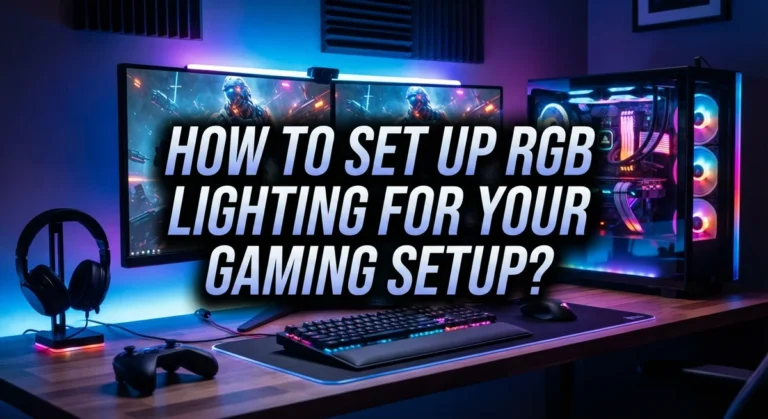
Extended gaming and work sessions put serious stress on your eyes. A monitor light bar reduces this strain by providing soft, consistent lighting that prevents the harsh contrast between your bright screen and dark surroundings.
The key benefit is reduced eye fatigue. When you game or work for hours without proper lighting, your eyes constantly adjust between the glowing monitor and the darker room. This adjustment tires your eye muscles. A monitor light bar eliminates this problem by filling the space behind your monitor with gentle illumination.
Your eyes also experience less dryness during extended sessions. The soft glow reduces the intensity your eyes must process. This means you blink more naturally and maintain better moisture levels throughout long gaming marathons or work days.
Productivity actually improves when eye strain decreases. You can focus on your task instead of fighting discomfort. Many people find they can work or game 1 to 2 hours longer before needing a break.
The asymmetrical light design matters here. It directs light away from your line of sight, so you never see the light source directly. This prevents new glare while reducing the glare from your monitor.
For gaming specifically, this lighting setup helps during intense sessions where you need sharp focus. The reduced strain means better reaction times and fewer headaches after long play periods.
During work sessions, the consistent lighting supports concentration. You maintain steady vision without the eye fatigue that normally builds up by afternoon.
Start with moderate brightness settings on your light bar. Too bright defeats the purpose. Adjust gradually to find your comfort zone. Most people find their sweet spot within the first week of use.
Final Thoughts
A monitor light bar makes a real difference for tired eyes. It cuts glare without dimming your screen. This simple addition helps you work or game for longer periods.
Room lighting still matters even with a good light bar installed. The bar works best as part of your overall setup. Pair it with decent room lighting for the best results.
Getting the basics right is more important than any single feature. Correct positioning, proper brightness, and good color temperature all play a role. Skip any of these, and you might not notice much difference.
Your eyes deserve this small investment of time. Setting up a light bar takes just a few minutes. The payoff is less strain, fewer headaches, and better focus during long sessions.
Gaming and work sessions both benefit from this upgrade. Long hours in front of a screen are tough on your eyes. A well positioned light bar helps you push through those sessions with less discomfort.
Remember that adjustment takes time too. Your eyes need a few days to notice the change. Don’t give up on your light bar if you don’t feel instant relief.
Think of a light bar as one part of a bigger picture. Screen breaks, proper posture, and blinking often all support eye health too. Combine these habits with your light bar for the best outcome.
In the end, a monitor light bar offers a practical solution. It’s not complicated to use, and the benefits speak for themselves. Try one out, adjust it to your space, and give your eyes the relief they deserve.
Frequently Asked Questions
Will a monitor light bar make my screen dimmer?
No, it won’t. A monitor light bar uses an asymmetrical design that directs light away from your screen. This eliminates glare without reducing your display brightness. Your screen stays just as bright while the light bar reduces the contrast between your monitor and your surroundings.
Does a monitor light bar actually reduce eye strain?
Yes, it does work. The light bar reduces eye strain when your room has adequate lighting. It prevents your eyes from working too hard to see your screen clearly.
Your eyes experience less dryness during long work sessions. You can focus for longer periods without feeling tired.
Can I use a monitor light bar for gaming?
Absolutely. A monitor light bar helps during extended gaming sessions. It reduces eye fatigue when you need sharp focus and concentration.
The consistent lighting supports your vision during intense gameplay. Many people who game for hours find this setup makes a real difference.
Why isn’t my monitor light bar working?
Check your room’s overall brightness first. A light bar works best in well-lit environments. If your room is too dark, the light bar cannot do its job effectively.
Next, look at your monitor’s brightness settings. If your screen is too bright or too dim compared to the light bar, your eyes still work too hard. Adjust your display brightness to match the lighting conditions.
Color temperature matters too. If your light bar feels harsh or too warm, it may not reduce strain. Give yourself time to adjust to the new lighting setup.

DK is the founder and lead writer at Smart Lighting Finds, where he helps readers discover the best lighting products through honest, hands-on reviews and in-depth comparisons. With a deep passion for home improvement and smart technology, DK is dedicated to making every lighting decision easier and brighter for his readers.