How to Choose Eye-Friendly Lighting for Long Gaming Sessions?
Long gaming sessions can leave your eyes feeling tired and sore. Bad lighting is often the hidden cause. Many gamers focus on their monitor or chair but forget about the room around them.
Your eyes work hard during fast paced games. Bright screens against dark rooms create harsh contrast. This contrast tires your eyes faster than you think.
The good news is simple. You can fix this with smart lighting choices. This article will show you how to build an eye-friendly gaming setup.
We will cover the three layer lighting system. You will learn about ambient light, backlighting, and front-facing light. Each layer plays a role in protecting your eyes.
You will also discover why bias lighting matters for dark gaming sessions. We will explain why warm white light beats blue LEDs. RGB lighting looks cool, but it does not protect your eyes.
By the end, you will know exactly how to set up lighting that feels comfortable. Your eyes will thank you during those marathon gaming sessions.
In a Nutshell
Here’s a quick recap of everything you need to know:
-
Use three layers of light. Combine ambient room light, backlighting, and front facing light. This setup keeps your eyes balanced during long sessions.
-
Add bias lighting behind your monitor. This trick softens contrast between your screen and the room. It works especially well for dark gaming sessions.
-
Skip blue LEDs. Choose warm or neutral white lighting instead. Blue light adds strain and tires your eyes faster.
-
RGB lighting is just for looks. It sets a nice mood but does nothing to protect your eyes. Don’t rely on it for comfort.
-
Keep your room lighting moderate. Avoid harsh glare or sudden bright spots. Your eyes need steady, gentle light to stay relaxed.
-
Check your in-game settings too. Adjust brightness and contrast so they match your room. This small step makes a big difference over time.
Follow these points, and your eyes will thank you after every gaming marathon.
Why Lighting Matters During Long Gaming Sessions
Your eyes face real strain during extended gaming. When you stare at a screen for hours, your eyes work continuously to focus on fast moving action and bright pixels. This effort causes fatigue, dryness, and discomfort that can ruin your gaming experience.
The problem gets worse when your room lighting doesn’t match your screen brightness. If your gaming area is too dark or too bright compared to your monitor, your eyes must constantly adjust. This constant adjustment exhausts the muscles in your eyes and leads to headaches.
Proper lighting reduces this strain significantly. When you set up lighting correctly, your eyes don’t have to work as hard. Your pupils stay more stable, and your focus stays sharper for longer periods.
Lighting also affects your gaming performance. When your eyes feel comfortable, you can react faster to in-game events. You’ll notice better accuracy and quicker decision making during competitive moments.
Beyond comfort, good lighting protects your long-term eye health. Regular strain from poor lighting can lead to temporary vision problems that persist even after you stop gaming. Over time, repeated stress adds up and causes lasting damage.
The right lighting setup serves multiple purposes. It reduces immediate fatigue during your session. It keeps your eyes healthy for future gaming marathons. It even improves how well you play because your eyes stay fresh and focused.
The key is understanding that lighting isn’t just about brightness. It’s about balance, color, and positioning. When these three elements work together, your eyes experience minimal stress.
This is why gamers who invest time in proper lighting report feeling better after long sessions. They notice less dryness, fewer headaches, and sharper vision throughout their gaming time. The difference becomes obvious once you experience it yourself.
Understanding the Three-Layer Lighting System
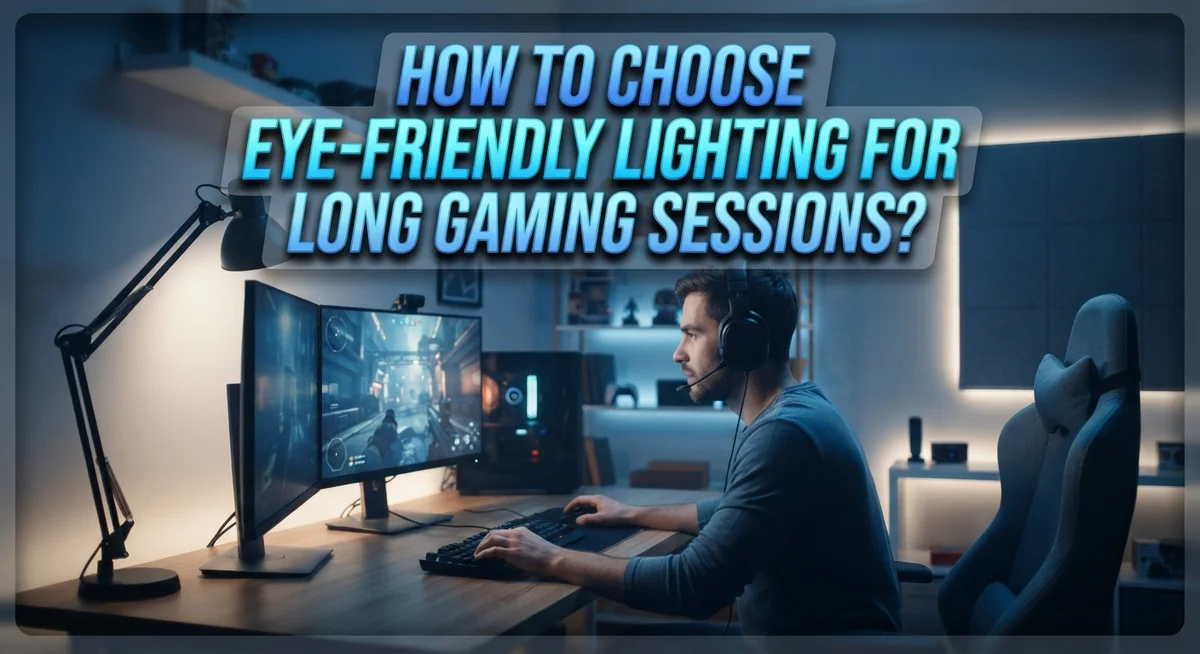
A three-layer lighting system gives your eyes the best support during marathon gaming sessions. This approach combines three distinct light sources that work together to reduce strain and create visual comfort.
The first layer is ambient lighting. This is your room’s general illumination. You want moderate brightness that matches your monitor’s output. Too dark, and your eyes strain to see surroundings. Too bright, and harsh glare washes out your screen. Aim for soft, even light throughout your gaming space.
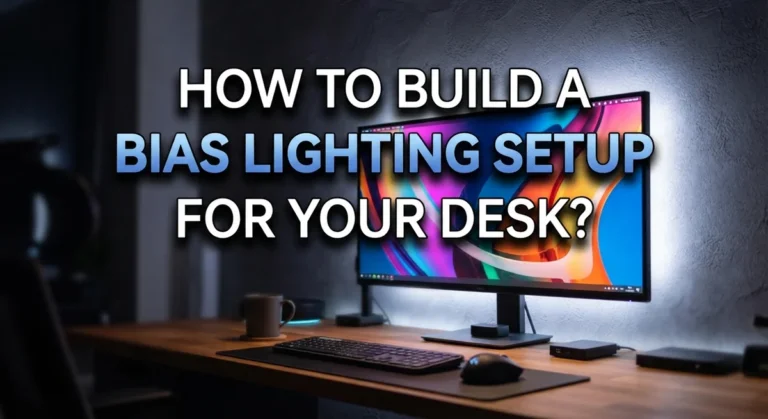
The second layer is bias lighting. This light goes behind your monitor. It creates a gentle glow that reduces the contrast between your screen and the wall behind it. Your eyes don’t have to adjust between a bright screen and dark surroundings. This layer matters most during dark gaming scenes. Bias lighting makes your pupils work less, which means less fatigue over time.
The third layer is front-facing light. This is direct illumination on your desk and keyboard area. You need enough light to see your controls without glare bouncing off your screen. Position this light to one side, not directly in front of you.
Color temperature matters significantly. Warm or neutral white lighting (around 3000 to 4000 Kelvin) feels easier on your eyes during extended sessions. Blue-toned lighting increases eye strain when used for hours. Your brain interprets blue light as daytime, which can mess with your natural rest cycle too.
The beauty of this three-layer system is flexibility. You adjust each layer based on your game and room conditions. Dark horror games benefit from stronger bias lighting. Bright, colorful games might need less ambient light. This layered approach gives you control over your entire visual environment, not just one light source.
Step-by-Step: Setting Up Your Gaming Room Lighting
Start by measuring your gaming room’s current light levels. Use your phone’s built-in light meter or a simple lux meter to understand what you’re working with. Most gaming spaces need between 300 to 500 lux of ambient light. This prevents harsh contrast between your screen and surroundings.
Position your main light source to the side or behind you, never directly in front. Direct lighting creates glare on your monitor and forces your eyes to work harder. Ceiling lights should be diffused, not bright spotlights pointing downward. Soft, even illumination across your entire room works best.
Next, add bias lighting behind your monitor. This light should be subtle and match your monitor’s brightness level. Place LED strips about 2 to 3 inches behind your screen, pointing toward the wall. The goal is reducing the contrast between your dark screen and bright surroundings. Your eyes relax when they don’t face extreme brightness differences.
Adjust your monitor’s brightness and contrast settings to match your room’s lighting. If your room is dimly lit, lower your screen brightness. If your room is brightly lit, increase it slightly. These in-game settings matter just as much as your room’s physical lights.
Use warm white lighting (3000K to 4000K color temperature) throughout your gaming space. Avoid cool blue lighting, which increases eye strain during long sessions. Warm tones feel more natural and comfortable for extended viewing.
Test your setup by spending 30 minutes gaming and noting any eye discomfort. Adjust light positions or brightness levels based on what you feel. Everyone’s eyes are different, so your ideal setup may differ from someone else’s. Move lights gradually until you find your comfort zone. Document what works so you can recreate it consistently.
Choosing the Right Color Temperature and Bias Lighting
Color temperature is the warmth or coolness of light, measured in Kelvin (K). This measurement directly affects how your eyes feel during long gaming sessions.
Warm lighting falls between 2700K and 4000K. This range produces a yellowish or soft white glow. Warm lighting causes less eye strain because it mimics natural evening light. Your eyes relax more easily with this type of illumination. Games that require focus and precision benefit greatly from warm tones.
Cool lighting ranges from 5000K to 6500K and above. This produces a bluish or bright white appearance. Cool lighting works better for specific gaming situations. Strategy games or puzzle games can use cooler temperatures without issues. However, extended exposure to cool lighting increases fatigue during marathon sessions.
The sweet spot for most gamers sits around 3000K to 4000K. This range provides clarity without harshness. Your eyes maintain comfort even after several hours of play.
Bias lighting deserves special attention here. This is the light you place behind your monitor. Bias lighting should match or complement your monitor’s color temperature. If your screen displays warm tones, use warm bias lighting behind it. This consistency prevents your eyes from constantly adjusting between different light sources.
The contrast between your monitor and room matters too. A monitor displaying cool light in a warm room creates visual conflict. Your eyes work harder to process this mismatch. Keeping color temperatures consistent throughout your space reduces this strain significantly.
Test different temperatures before committing to one setup. Spend time gaming under 3000K lighting, then try 4000K. Notice which feels more comfortable for your specific games. Your personal preference matters as much as general guidelines.
Adjust gradually if you’re switching from cool to warm lighting. Your eyes need time to adapt to new color temperatures.
Adjusting In-Game Display Settings for Eye Comfort
Your in-game display settings are the foundation of eye comfort during long gaming sessions. These settings directly control what your eyes see on screen, so adjusting them properly makes a real difference.
Start by lowering your brightness setting. Many gamers keep their monitors too bright, which forces your eyes to work harder. Match your monitor brightness to your room’s lighting level. If your room is moderately lit, your screen brightness should feel comfortable without appearing dim or overly bright.
Next, adjust your contrast carefully. High contrast creates sharp differences between dark and light areas on screen. This forces your eyes to constantly readjust, causing fatigue. Lower your contrast slightly so transitions feel smoother and less jarring to your vision.
Gamma settings control the midtone brightness of your game. A proper gamma setting reduces strain by preventing dark areas from being too dark or light areas from being too bright. Most games offer gamma adjustments in their graphics menus. Experiment with small changes until the image feels balanced.
Enable color temperature adjustments if your game offers them. Cooler colors (blue tinted) can increase eye strain during extended play. Warmer tones feel easier on your eyes. Some games let you shift colors toward warmer ranges directly in settings.
Reduce motion blur and flashing effects when possible. These visual effects make your eyes track movement constantly, which causes fatigue. Disabling or minimizing them helps you maintain focus without strain.
Finally, take advantage of any built-in eye comfort modes your game provides. Many modern games include settings specifically designed to reduce blue light or adjust overall display warmth. These features exist because developers understand eye fatigue.
Test each adjustment for 15 to 20 minutes before making further changes. Your eyes need time to adapt and provide accurate feedback about comfort.
Common Mistakes That Increase Eye Strain
Many gamers unknowingly create eye strain through simple lighting mistakes. Understanding these errors helps you protect your vision during extended play sessions.
Blue LED lighting is the biggest culprit. Many gaming setups feature bright blue lights because they look cool. However, blue wavelengths stimulate your eyes more intensely. During long sessions, this overstimulation causes fatigue and discomfort. Your eyes work harder to process blue light, especially in dark rooms. Switching to warm white lighting reduces this strain significantly.
Harsh glare and brightness contrast create another major problem. When your monitor is much brighter than your room, your pupils constantly adjust. This constant adjustment exhausts the muscles in your eyes. Stark differences between your gaming screen and surroundings force your eyes to work overtime. The solution is simple: match your room’s brightness to your monitor’s output.
Neglecting in-game display settings is surprisingly common. Many gamers assume default settings are optimal. They aren’t. Your game’s brightness, contrast, and gamma settings directly affect eye comfort. Leaving these at maximum intensity increases strain. You need to lower brightness to a comfortable level for your room.
Relying on RGB lighting for eye protection is a false solution. RGB systems create ambiance and mood. They don’t reduce eye strain or protect your vision. Some gamers think colorful lighting helps, but it’s purely aesthetic. This misconception wastes money and doesn’t solve the real problem.
Finally, skipping bias lighting behind your monitor is a missed opportunity. Dark gaming requires subtle backlighting to reduce contrast. Without it, your eyes focus intensely on a bright screen in darkness. This creates significant fatigue over time.
The key is balance. Warm lighting, proper brightness matching, adjusted in-game settings, and bias lighting work together. Avoid these mistakes, and your eyes will thank you during marathon gaming sessions.
Troubleshooting Persistent Eye Fatigue Despite Good Lighting
Your eyes hurt even though your lighting looks good? This happens more often than you think. The problem usually isn’t one single issue. Instead, several small factors combine to tire your eyes.
First, check your monitor’s brightness against your room’s brightness. Your screen should match your surroundings. If your monitor is much brighter than your room, your eyes work harder to adjust. Dim your screen or add more ambient light to balance things out.
Next, look at your sitting position. Your eyes strain when you sit too close or too far from your screen. Your monitor should be about an arm’s length away. The top of your screen should sit slightly below eye level. Poor posture forces your eyes to work harder, even with perfect lighting.
Blue light exposure matters more during long sessions than many realize. If your room has cool white lighting above 5000K, switch to warmer tones around 3000K to 4000K. Blue light keeps your brain alert, which actually increases eye fatigue over time.
Your in-game settings might need adjustment too. Many gamers leave default settings unchanged. High contrast and maximum brightness strain your eyes during extended play. Lower both slightly and test for 20 minutes to see if you feel better.
Don’t forget about screen glare. Reflections from windows, lights, or other surfaces add strain. Position your monitor to avoid direct reflections. Add a monitor hood or adjust your lighting angles if needed.
Finally, take regular breaks using the 20-20-20 rule. Every 20 minutes, look at something 20 feet away for 20 seconds. This simple habit reduces fatigue significantly.
Persistent eye strain rarely comes from one cause. Test each factor individually. Change one thing at a time and wait several days before adjusting something else. Your eyes need time to adapt to new lighting conditions.
Final Thoughts
Good lighting makes gaming more comfortable. Your eyes deserve care during those long sessions.
Small changes create big results. You don’t need to overhaul your entire setup. Start with one adjustment and build from there.
Bias lighting behind your monitor helps most gamers immediately. It reduces the contrast between your bright screen and dark surroundings. This simple addition eases eye fatigue during nighttime sessions.
Remember the three layer approach. Ambient light fills your room. Backlighting reduces screen contrast. Front facing light keeps your face and keyboard visible without glare.
Warm and neutral white tones work better than blue LEDs. Your eyes relax more easily under gentle lighting. Save the cooler tones for daytime gaming when natural light already fills your room.
RGB lighting looks fun, but it won’t protect your eyes. Treat it as decoration, not eye care. Pair it with proper ambient and bias lighting for real comfort.
Your in-game settings matter just as much as your room setup. Brightness, contrast, and gamma adjustments work together with your physical lighting. Neither one works well alone.
Testing takes time. Give each change at least fifteen minutes before judging results. Your eyes need time to adjust to new lighting conditions.
Persistent strain often comes from multiple small issues stacking up. Check your screen brightness, room lighting, sitting distance, and blue light exposure together. Fixing one factor rarely solves everything.
The 20-20-20 rule remains your best habit. Every twenty minutes, look at something twenty feet away for twenty seconds. This simple break protects your eyes regardless of your lighting setup.
Good lighting isn’t about spending more money. It’s about creating balance between your screen, your room, and your habits. Small, consistent adjustments protect your eyes far better than any single quick fix.
Frequently Asked Questions
Does blue light really harm my eyes during gaming?
Yes, blue light exposure matters during long gaming sessions. Your eyes process blue wavelengths differently than other colors, which can cause strain over time. Blue LEDs in gaming setups look cool but actually increase fatigue. Warm or neutral white lighting is gentler on your eyes during extended play. If you prefer cooler lighting for certain games, use it sparingly and take frequent breaks.
Will RGB lighting protect my eyes?
No. RGB lighting serves one purpose: aesthetics. It creates mood and atmosphere in your setup but does nothing to reduce eye strain. Many gamers mistakenly believe colorful lights provide eye protection. Treat RGB as decoration only, not as eye care. Your actual eye protection comes from bias lighting, room brightness balance, and proper in-game settings instead.
What’s the best lighting setup for dark gaming sessions?
Use a three-layer system. First, add subtle bias lighting behind your monitor. This reduces the contrast between your bright screen and dark surroundings. Second, maintain soft ambient light in your room to avoid harsh glare. Third, ensure your front-facing light doesn’t reflect off your screen. Avoid completely dark rooms because the brightness difference strains your eyes more than you realize.
Can I fix eye strain just by changing my lighting?
Probably not alone. Eye strain usually comes from multiple factors stacking together. Check your monitor’s brightness against your room’s brightness first. Next, review your sitting position and screen distance. Adjust your in-game brightness and contrast settings too. Finally, follow the 20-20-20 rule: every 20 minutes, look at something 20 feet away for 20 seconds. Good lighting helps, but it’s one piece of the puzzle.

DK is the founder and lead writer at Smart Lighting Finds, where he helps readers discover the best lighting products through honest, hands-on reviews and in-depth comparisons. With a deep passion for home improvement and smart technology, DK is dedicated to making every lighting decision easier and brighter for his readers.